Adding a Ticket
Here we run through adding a ticket as a user through the web interface.
This article runs through raising a ticket from a building user perspective, both through the Web interface and mobile app. If you are a Facilities operative or admin, you can add a ticket through the FM Dashboard as described here.
Step 1 - Open up your Ticket Manager, by going into the relevant project and clicking on the Tickets menu in the main menu as shown below.

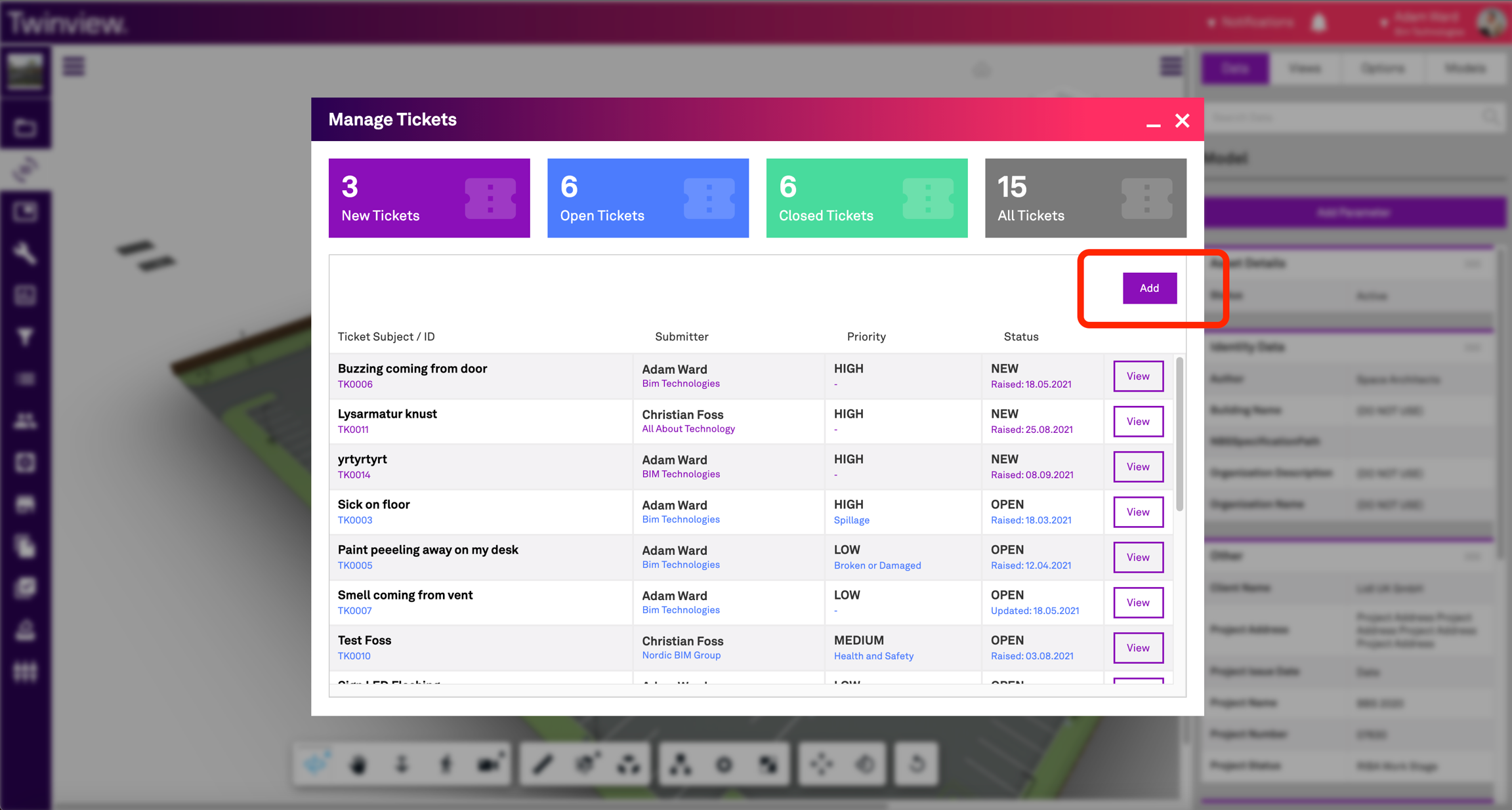
Step 2 - When the ticket manager modal appears, you can raise a new ticket by clicking 'Add' in the top right, as shown below.
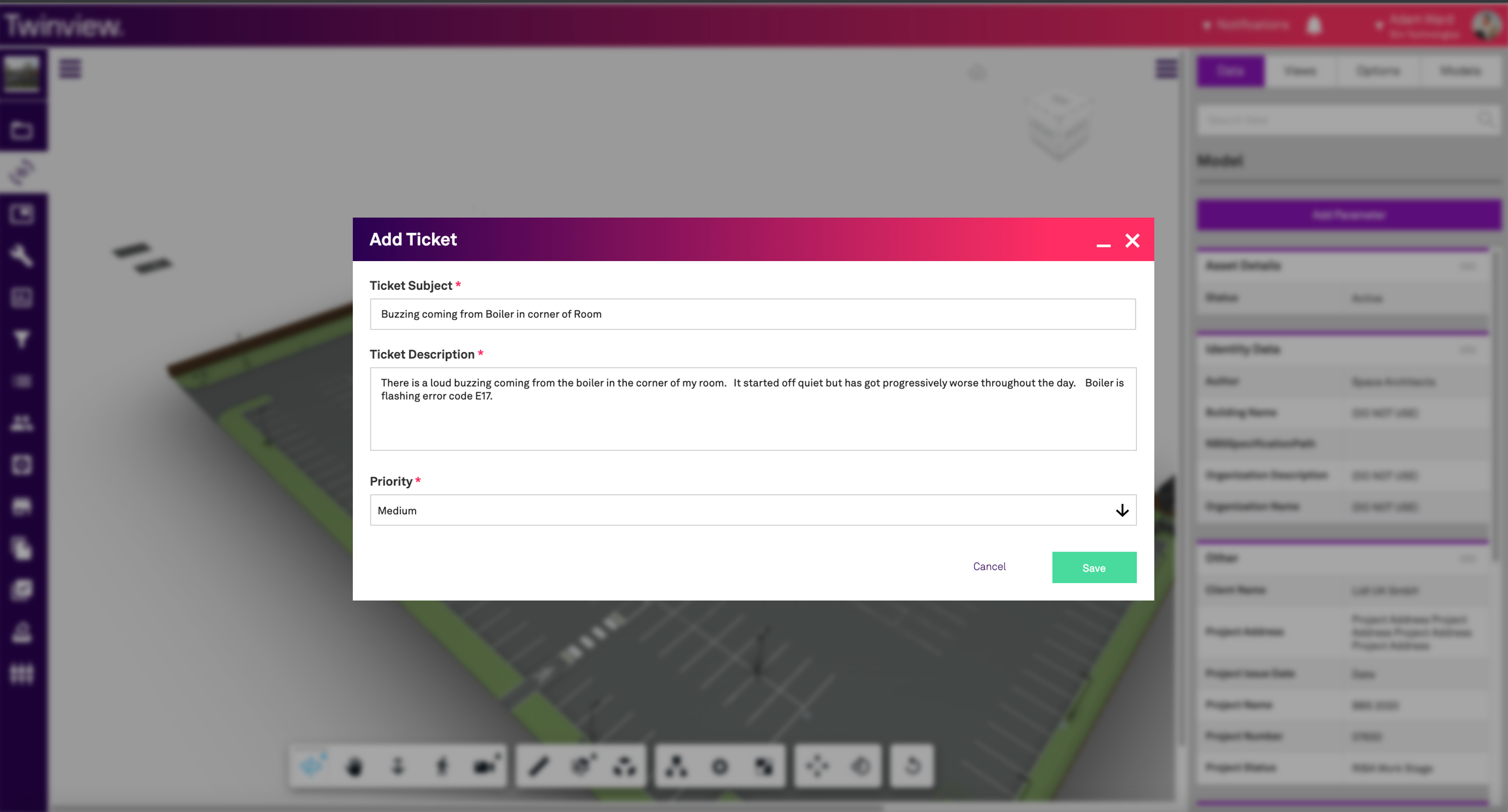
Step 3 - Populate the ticket with information about the issue or problem. Be as descriptive as you and describe the issue in as much detail as possible. You can also select a priority if known, however this will be reviewed and updated by the maintenance operative after they have reviewed the ticket, so your best guess is okay. When done click 'Save'
Step 4 - Your ticket has now been submitted to the FM team for review. Optionally You can add additional information at this stage if you wish, such as add an image photograph of the issue. To do this click on the 'Attachment' tab in the ticket.

Step 5 - Click 'Add' and then select the file you wish to upload. The file will be uploaded and added to the ticket.
Last updated
Was this helpful?